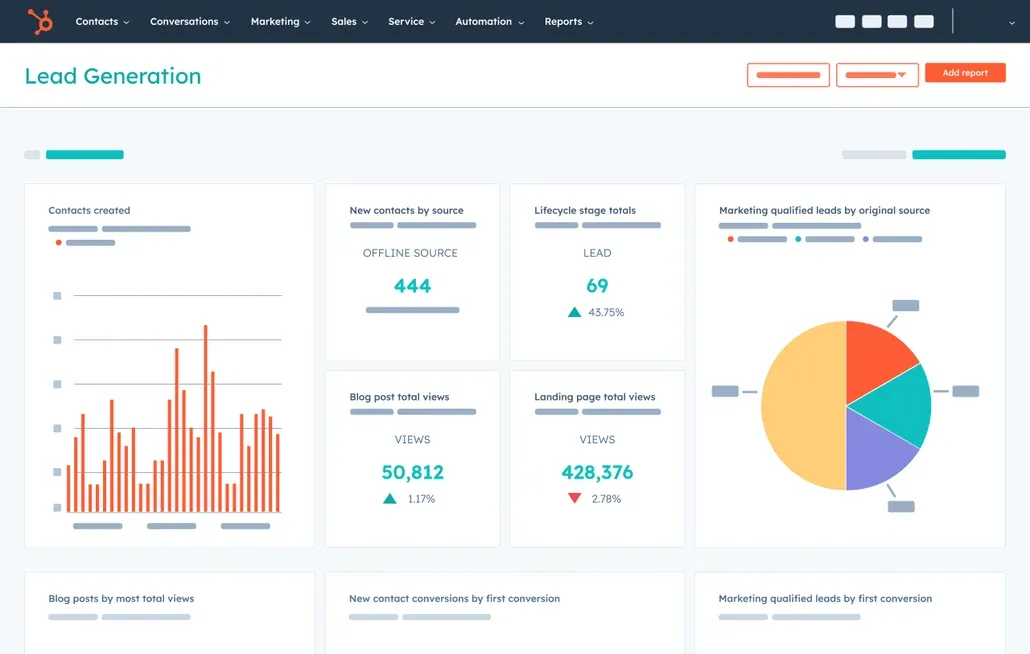
The real problem: you have data in HubSpot, but no one trusts the numbers
If you are new to HubSpot, you probably see the same warning signs.
Marketing, sales, or service leaders ask for simple answers like
- How many qualified deals did we create this month
- Which campaigns generated actual revenue, not just clicks
- Which reps are moving deals fastest through the pipeline
You open HubSpot, click into reports, and find
- Dozens of pre built reports that almost answer the question but not quite
- Confusing terminology like objects, datasets, and attribution
- Dashboards full of charts someone created once and then abandoned
The result is predictable. Leadership exports data to spreadsheets. Teams maintain side reports in Sheets or Excel. HubSpot becomes a data graveyard instead of a source of truth.
This guide fixes that by showing you how to approach HubSpot reporting the way Proven ROI does in real client accounts. You will start from questions, not charts, and build reports that people actually use.
Direct answer: how do you create a report in HubSpot as a beginner
At the simplest level, creating a report in HubSpot follows five steps
- Decide the business question you want to answer
- Choose the right type of report
- Select your data sources and fields
- Apply filters so the numbers match your reality
- Pick a clear visualization and add it to a dashboard
If you can follow those five steps consistently, you can build useful reports in any HubSpot portal, even as a beginner. The rest of this guide simply breaks each step down.
Step 1: start with a simple, concrete question
Every strong HubSpot report starts with a clear, specific question. If you skip this, you end up with pretty charts that do not drive decisions.
Good beginner questions sound like
- How many new contacts did we create this month by source
- How many deals moved to a particular stage this quarter
- How much revenue closed this month by owner
- Which email campaigns generated the most new contacts
Each question should include
- A subject
Contacts, companies, deals, tickets, or activities - A time frame
This month, last quarter, last 90 days - A grouping
By owner, by source, by pipeline, by lifecycle stage
Write the question in one sentence before you open HubSpot. This keeps you from getting lost inside the builder.
Step 2: know which type of report to use
HubSpot offers different report types. As a beginner, you do not need to master them all at once. Start with three.
- Single object reports
Best when you want to report on one type of record such as contacts or deals. Examples- New contacts by source
- Deals by stage
- Tickets by status
- Cross object or custom report builder
Best when you want to connect multiple data types, such as contacts and deals, or deals and activities. Examples- Deals with associated companies by industry
- Revenue by original source and pipeline
- Tickets by company segment
- Dashboard level views
Collections of multiple reports that give a quick view of performance for a team or goal. Examples- Sales performance dashboard
- Marketing funnel dashboard
- Customer service dashboard
As a beginner, start with single object reports to build confidence, then move into custom reports when you need more advanced views.
Step 3: navigate to the reports area and choose how to start
When you are ready to build
- Go to the reporting section inside your HubSpot portal
- Open the reports area
- Click create report
You will usually see options such as
- Use a template
- Use AI help to generate a report from a prompt
- Build a custom report
- Build a single object report
For beginners, there are three practical paths
- Templates when you want quick, common metrics
For example pipeline overview or email performance - Single object when your question is simple and focused on one object
- Custom report builder when you need multiple objects or more flexibility
Start from templates and single object reports first. You can always customize them later.
Step 4: pick the right data source
Once you choose your report type, HubSpot will ask you to pick data sources. Think of data sources as the set of records you want to analyze.
Common data sources include
- Contacts
- Companies
- Deals
- Tickets
- Activities such as calls, meetings, and tasks
- Marketing activities such as email, forms, and ads
Hints for beginners
- If your question is about people in your database, start with contacts
- If your question is about revenue, focus on deals
- If your question is about support work, use tickets
Later, when you are comfortable, you can add more data sources to the same report to combine, for example, deals with company industries or contact lifecycle stages.
Step 5: add the fields that matter
Fields, also called properties, are the specific data points you want to see and analyze in the report.
Typical fields for
- Contacts
Lifecycle stage, original source, create date, owner - Deals
Amount, deal stage, close date, pipeline, owner - Companies
Industry, number of employees, lifecycle stage - Tickets
Status, priority, time to close, pipeline
To build a useful beginner report
- Add only the fields that directly answer your question
- Avoid adding every field you can think of, or the report becomes noisy
- If you are not sure what a field means, hover over it or check its definition before adding
A focused report with three relevant fields is more powerful than a cluttered report with twenty.
Step 6: use filters so your numbers match reality
Filters decide which records the report includes. This is where many beginners go wrong. They forget filters and then cannot explain their numbers.
Common filter types
- Date filters
Create date, close date, last activity date
Example
Show deals where close date is in this month - Status filters
Lifecycle stage, deal stage, ticket status
Example
Show contacts where lifecycle stage is marketing qualified lead - Ownership filters
Contact owner, deal owner, company owner
Example
Show deals where owner is a particular rep - Pipeline or team filters
Deal pipeline, ticket pipeline, region
Example
Show deals in the new business pipeline only
Every report should have at least one clear date filter and one status related filter. Write in plain language what your filters are doing. If you cannot explain the logic simply, simplify the filters.
Step 7: choose a visualization that matches the question
The chart type should be dictated by what you are trying to see, not by what looks impressive.
Good beginner choices
- Numbers or summary tiles
For simple KPIs like total revenue or number of new contacts - Bar or column charts
For comparing values by category, such as revenue by owner or contacts by source - Line charts
For trending over time, such as deals created each week - Tables
For detailed lists when you need to see specific records with key fields
Ask yourself
- Do I need to compare categories
- Do I need to see trends over time
- Do I need a detailed list
Pick the simplest chart that answers that need. If a line chart and a bar chart both work, use the one that your team finds easiest to read.
Step 8: save the report and add it to a dashboard
A report is only useful if people see it regularly.
When you are happy with the initial version
- Save the report with a descriptive name
For example new deals by owner this month instead of test report 1 - Decide where to put it
- Add it to an existing dashboard for the relevant team
- Or create a new dashboard for a specific purpose such as sales KPIs
- Set visibility
Make the dashboard visible to the right users or teams so they can view it without digging
Dashboards become the home for daily and weekly decision making. Treat them as living spaces, not static collections.
Step 9: build three starter dashboards as a new user
If you are just getting started, Proven ROI recommends building three simple dashboards first.
- Sales performance dashboard Include reports such as
- New deals created by stage
- Closed won revenue this month by owner
- Deals in each stage by pipeline
- Marketing funnel dashboard Include
- New contacts by original source
- Contacts by lifecycle stage
- Form submissions or key campaign performance metrics
- Service or success dashboard Include
- New tickets by status
- Average time to close tickets
- Tickets by pipeline or category
These three dashboards give leadership a clear view of front end demand, mid funnel pipeline, and post sale experience without overwhelming anyone with advanced analytics.
Step 10: common beginner mistakes to avoid in HubSpot reporting
When Proven ROI audits HubSpot portals, we see the same errors repeatedly. Avoiding them will save you hours.
Frequent mistakes
- Building reports with no question in mind
Results in charts no one understands or uses. Always start from a written question. - Mixing time frames on the same dashboard without labels
One report shows this month, another shows all time, another shows last quarter. Add the time frame to the report name or description. - Reporting on the wrong object
Trying to answer revenue questions with contact reports only, or support questions with deal reports, leads to confusion. - Ignoring lifecycle stages and deal stages
Without proper use of stages, reports become meaningless because every record looks the same. - Overcomplicating early
Beginners jump into advanced multi object reports before understanding single object basics. Master the simple first.
If a report feels confusing, strip it back. Fewer fields. Clearer filters. Simpler charts.
Real world example: turning a vague request into a usable HubSpot report
Imagine your sales leader says
“I just want to see how my reps are doing this month.”
That is too vague to build a report. Translate it into concrete questions.
- How many new deals has each rep created this month
- How much revenue has each rep closed this month
- How many deals does each rep have in later stages
From there you can build three simple reports
- Deals created this month by owner
- Closed won revenue this month by owner
- Open deals in late stages by owner
Add those to a sales dashboard, and you have a clean, repeatable way to review performance in weekly meetings. That is the kind of practical reporting Proven ROI implements across teams.
How Proven ROI thinks about HubSpot reporting for beginners
Beginners do not need more fancy charts. They need a system that makes reporting feel manageable and aligned with real business goals.
Our approach inside a new or messy portal usually follows this pattern
- Clarify what leadership actually needs to see weekly and monthly
- Map those questions to specific HubSpot objects and fields
- Clean up lifecycle stages, deal stages, and owners so data behaves predictably
- Build a small set of foundational single object reports
- Combine those into focused dashboards for marketing, sales, and service
- Train teams to read and trust those dashboards, then grow into more advanced custom reporting
The goal is not to use every reporting feature. The goal is to create a small number of reports that directly drive decisions about pipeline, revenue, and customer experience.
HubSpot reports are not hard when you follow a question first process
Creating reports in HubSpot as a beginner does not require technical skills. It requires discipline.
If you
- Start every report with a clear question
- Choose the right report type and data source
- Add only the fields that matter
- Filter carefully so the numbers make sense
- Use simple charts and clean dashboards
You will quickly move from “I do not trust these numbers” to “This dashboard is how we run the business.”
That is the reporting mindset Proven ROI brings to every HubSpot implementation. When your reports line up with how your team thinks and decides, your CRM stops being a chore and starts being a competitive advantage.